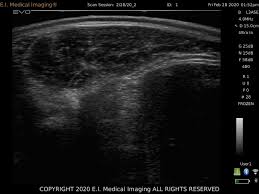
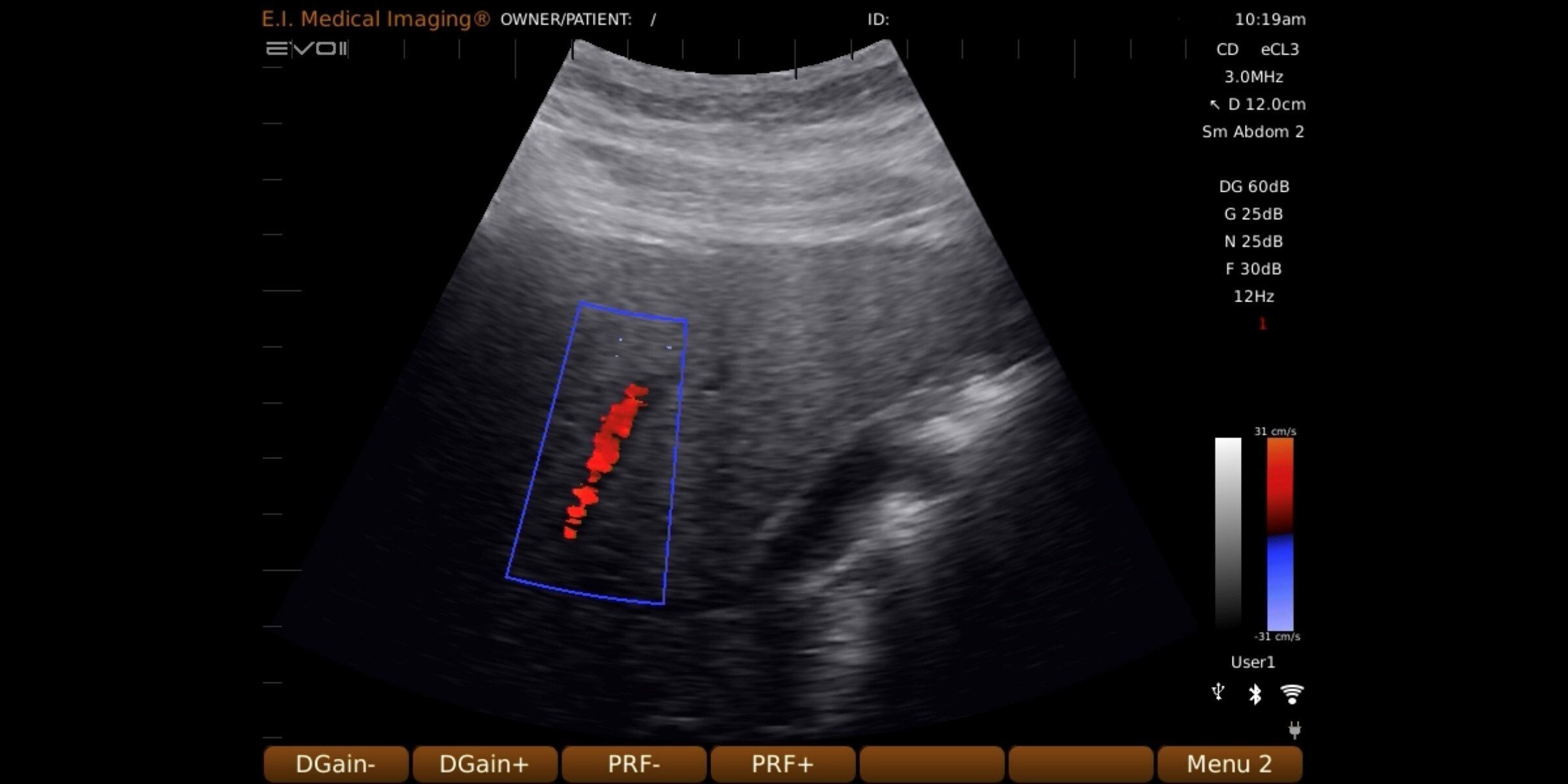
If you’ve ever found yourself juggling notes, images, and animal IDs while scanning, you already know how easy it is for things to get messy. That’s exactly where the workflow feature comes in on your IBEX EVO. There are several workflows available on the EVO, and in this first edition we're focusing on the carcass merit version, for use with the L3ASE transducer for collection of beef ribeye, loin, and fat data.
Instead of slowing you down, the workflow designed to speed everything up and keep your data consistent, even providing you with documented results at the end of your session. Let’s walk through how to use it in real life.
Why Use the Workflow Feature?
At its core, the Carcass Merit workflow helps you:
- Standardize how you capture images
- Ensure you don’t miss required scans
- Keep animal data organized automatically
- Reduce manual entry errors
- Review results at the conclusion of your session
In short—it turns a multi-step process into a smooth routine.
Step 1: Get Set Up
The carcass merit workflow is enabled only with use of the L3ASE carcass probe. Once that’s connected, press “N” to open the Carcass Merit dialog box. The first time you open it, the fields will be blank; to configure the session, Press F6 to enter the setup menu.
Step 2: Customize Your Workflow
Here’s what you’ll set:
- Required R Count → Number of rump images
- Required U Count → Number of loin images
- Required P Count → Number of fat measurements
- Weight Required → Decide if weight entry is mandatory
- File Delimiter → Controls how image names are formatted
💡 Example: You might use an underscore (_) so your files look like: Cow123_R1.jpg
This setup ensures every animal is captured the same way—no guesswork later.
Step 3: Start a New Animal
When you’re ready to scan:
- Press “N” again to begin a new entry
You’ll see fields for:
- Scan Session → company, facility, or herd identifier
- Animal ID → Often auto-filled if you’re using RFID
- Weight → If required
- R, U, P values → Your carcass measurements
The layout is intentionally simple so you can move quickly without breaking your rhythm.
Step 4: Capture Images with Confidence
Here’s where the workflow really shines. As you capture images, the system tracks how many you’ve taken for each category (R, U, P). If you miss one, it will alert you before you move on.
That means no incomplete datasets, no realizing later that you missed a shot, and no re-scanning animals unnecessarily. The workflow acts like a built-in checklist that runs in real time while you scan.
Pro Tips for Smoother Scanning
- Set your counts realistically – Don’t overcomplicate your workflow
- Use a consistent session naming convention – Makes sorting data easier later
- Leverage RFID when possible for animal ID – It speeds up entry significantly
- Double-check your delimiter – Clean file names = easier reporting
The Big Picture
The workflow feature isn’t just about saving time—it’s about confidence in your data.
When everything is tracked for you, you can spend less time worrying about the process and more time focusing on the animals and the insights you’re collecting.